
How to activate an event badge and prepare it for check-in
Prepare a badge for admission: confirm the guest record, understand the QR workflow and rehearse check-in before distributing event passes.
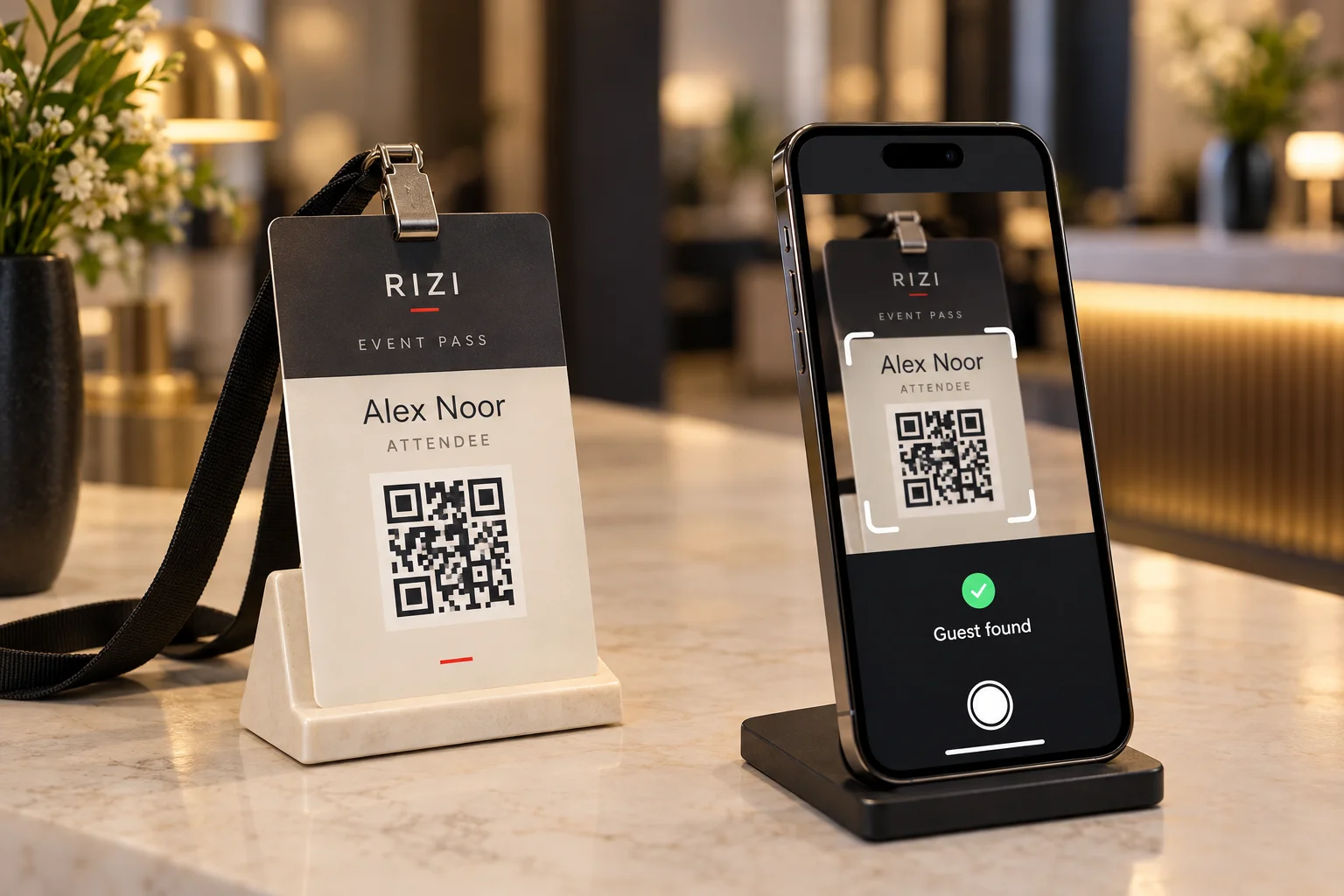
Activating an event badge means making sure it belongs to a valid guest record and works in the intended admission workflow. It does not mean opening an image, printing a card, or recording attendance before the guest arrives. A badge can look finished while the registration, approval or reception setup still needs attention.
Use this checklist before distributing conference passes, particularly when registration and badge production are handled by different people.
Start with the correct guest and event
Confirm the event, guest name and registration record first. Search for an existing guest before adding a new one. Two similar names may belong to different people, while one person may have registered with a different spelling or email address. Resolve that uncertainty before issuing a pass.
In a configured Rizi conference badge workflow, an existing guest’s card uses their existing admission QR. Creating a card does not itself send an email or mark the guest as present. These are separate actions and should remain separate in your team’s checklist.
Confirm what approval means for this event
Some events accept registration immediately; others review applications or require additional steps. Tell guests whether they have submitted a request, received an approved place, or received their final pass. Do not describe an application acknowledgement as an admission guarantee.
There is no universal activation button for every Rizi badge workflow. The correct preparation depends on the event’s registration and badge configuration. If your dashboard does not show a conference badge workspace, ask Rizi to confirm availability and setup rather than creating an unrelated QR code yourself.
Check the code’s purpose
A QR code may open an invitation response page, display a pass, or identify a guest for check-in. Test the actual link or credential produced by the selected workflow. A decorative QR graphic or a link to the event homepage cannot replace the guest’s admission credential.
Keep the original code intact when adjusting the layout. Do not cover it with a logo, crop its white border or copy another guest’s code. If a pass appears expired or invalid, have an authorized organizer investigate the current guest record and reissue through the supported process where appropriate.
Run an end-to-end rehearsal
- Use a designated test registration belonging to your own team.
- Open the pass from the same delivery channel guests will use.
- Scan it with the event’s authorized reception tool.
- Confirm that the displayed event and guest are correct.
- Record a test arrival only as part of the agreed rehearsal.
- Scan again and confirm that staff understand the duplicate-arrival response.
- Keep test records identifiable so they do not distort final attendance reporting.
If an offline reception setup is planned, test synchronization and the team’s exception procedure separately. Do not assume that any phone camera or disconnected browser provides the same checks as the configured reception app.
Deliver the badge with clear instructions
Tell the guest when to arrive, which entrance to use, whether a printed copy is necessary, and how to get help. Avoid exposing private details on the visible card. Agree how corrected names and replacement passes will be communicated so the team does not continue distributing an outdated file.
See how Rizi creates conference badges and how to verify badges at reception. For a custom conference setup, share your categories and arrival plan through Rizi’s badge service.