
How to create an event badge in the Rizi dashboard
A practical guide to the configured Rizi conference badge workspace: select a guest and role, preview the card and prepare the print batch.
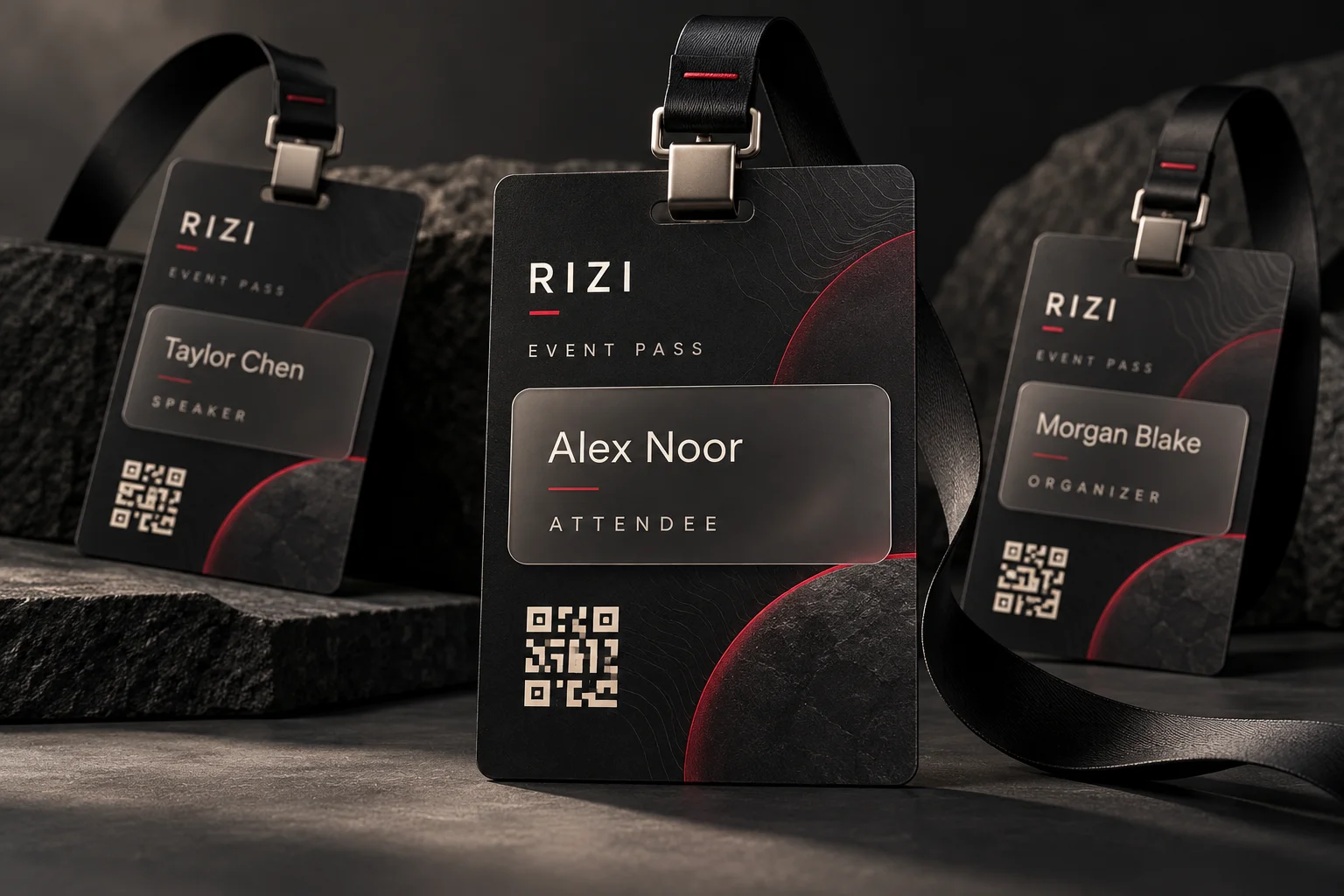
Creating a useful event badge starts with a reliable guest record, not an empty design canvas. Rizi’s configured conference badge workspace brings guest selection, role selection, preview and print preparation into one flow. This guide applies when conference badges have been enabled and configured for your event. Custom conference layouts are not automatically available in every organizer account.
If you are planning a new event, begin with Rizi’s conference badge service to confirm the categories, artwork and output you need. Once the workspace is ready, use the following process.
Prepare the information first
Collect the guest’s display name, role and organization where relevant. Ask for an approved portrait or company logo only when the chosen layout needs it. Make sure you have permission to use those assets. Avoid copying names, portraits, sponsor logos or artwork from another organizer’s event.
Agree the spelling of Arabic and English names before exporting a large batch. Choose the few fields that help people recognize one another; a badge is not the place to print a complete contact record or private registration answers.
Open the configured badge workspace
Sign in to the organizer dashboard, open the correct event and look for Badges & printing. The workspace lists the badges prepared for the event and allows role-based filtering and name searches. If this area is not available, ask Rizi about setup rather than assuming that a different account or a newly created guest will unlock it.
Use Add another badge to begin the creation flow. Choose the required role from the options configured for that event. The role affects the visual layout; it should not be treated as an automatic change to every access permission.
Select an existing guest or add a new one
For someone who already registered, search for and explicitly select the matching guest. The supported existing-guest flow retains the admission QR and does not create a duplicate registration simply to make a card.
For a genuinely new participant, enter the requested name and other required details. Confirm any possible match before continuing. The fields and special-role behavior depend on the configured conference; follow the labels in your own workspace rather than using a sample event’s requirements as universal rules.
Preview before sending or printing
Choose Create & preview badge, then check the displayed name, category, company and QR area. Creation itself does not send an email or record an arrival. Review the preview before using the separate delivery or print controls.
Print one sample at the intended size. Check the result with a long name, the actual holder and the reception scanner. A sharp on-screen preview is useful, but the paper stock, scaling and lighting can still affect the final result.
Prepare the selected batch
Use the name search and role filters to review the right set. Select the required cards and use the workspace’s print download. Keep a record of which batch was approved so a corrected name does not leave two conflicting versions on the print table.
Plan late additions and replacement cards with the reception lead. After preparation, follow the badge activation checklist and visitor verification guide. For hands-on coordination, Rizi White Glove can help scope an agreed guest-management service alongside the software.